How to send SMS from Zoho CRM with Twilio
Set up outgoing SMS from Zoho CRM in three steps: install the extension, connect your Twilio account and send your first test message.
This guide sets up outgoing SMS for Zoho CRM with our Twilio SMS for Zoho CRM extension. You need a Zoho CRM account, a Twilio account with a phone number, and about ten minutes.
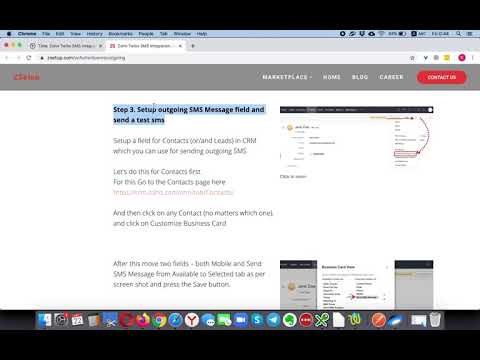
Step 1. Install the extension
Open the installation link we sent you and install the extension in Zoho CRM. Zoho calls these add-ons extensions. If you don't have a link yet, contact us and we'll send one.
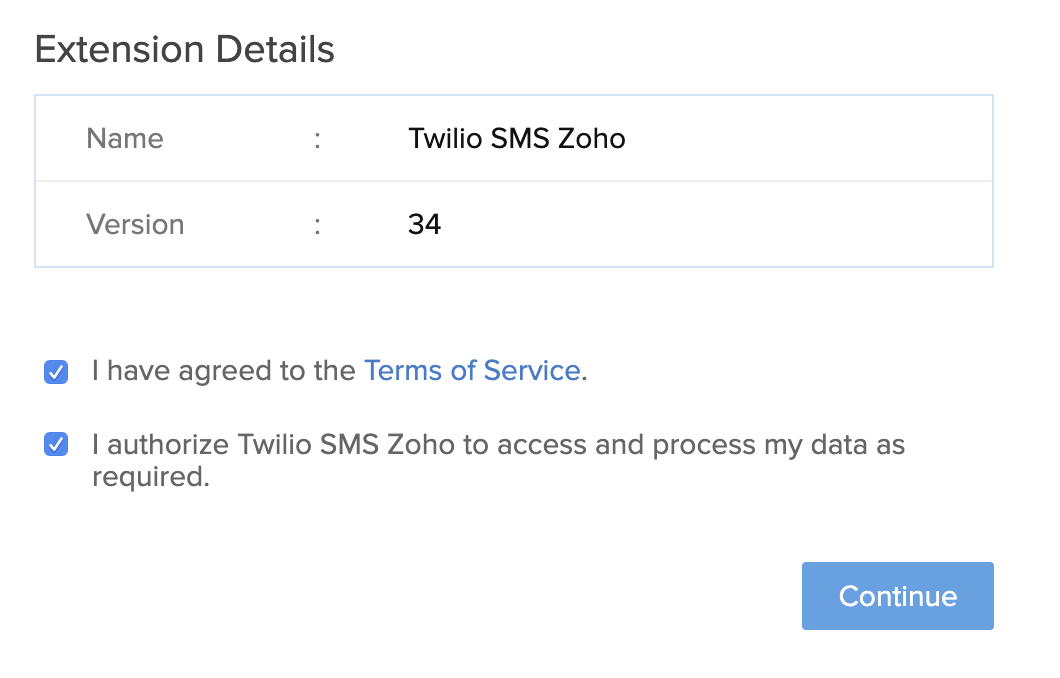
Step 2. Connect your Twilio account
During installation the extension asks for three values from Twilio: your Sender Number, Account SID and Auth Token.
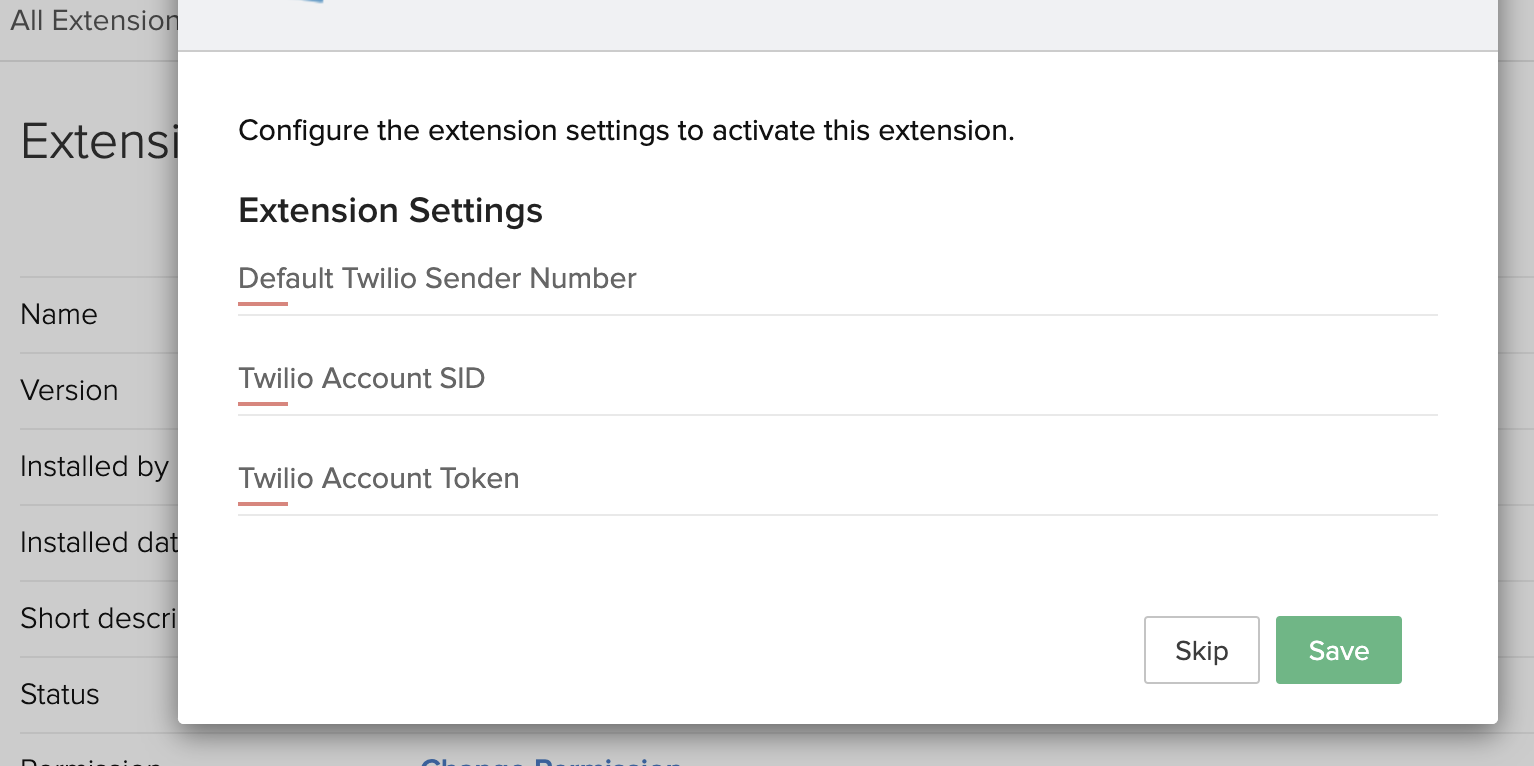
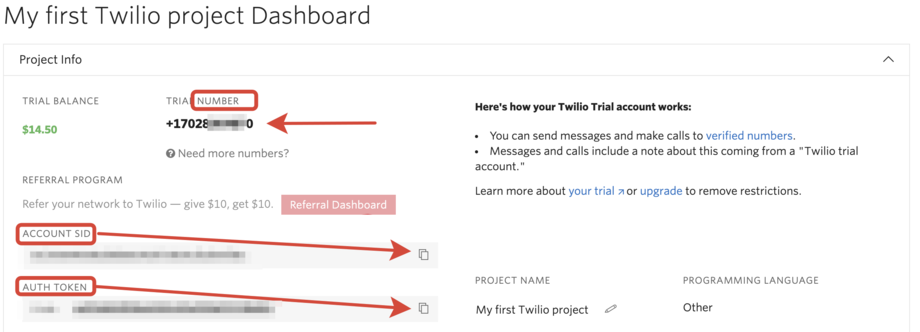
All three are on the dashboard of your Twilio Console. Copy them into the extension's fields.
Step 3. Add the SMS field and send a test
Next, show the field you'll type messages into. Start with Contacts; Leads work the same way.
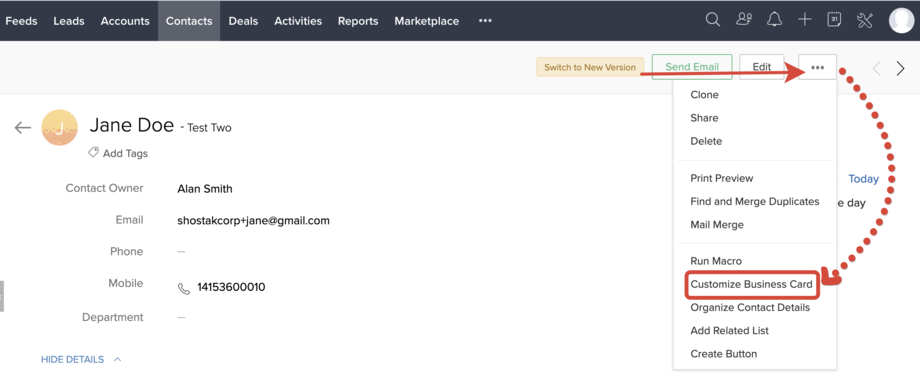
- Open the Contacts module and click any contact.
- Click Customize Business Card.
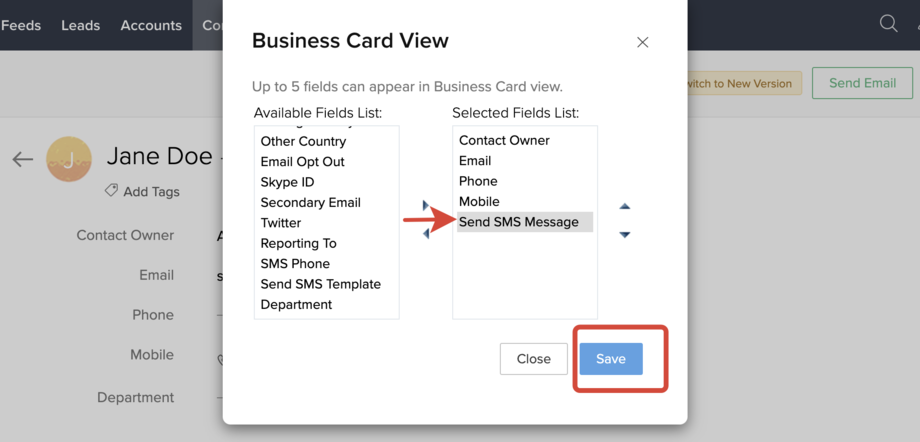
- Move Mobile and Send SMS Message from Available to Selected, then click Save.
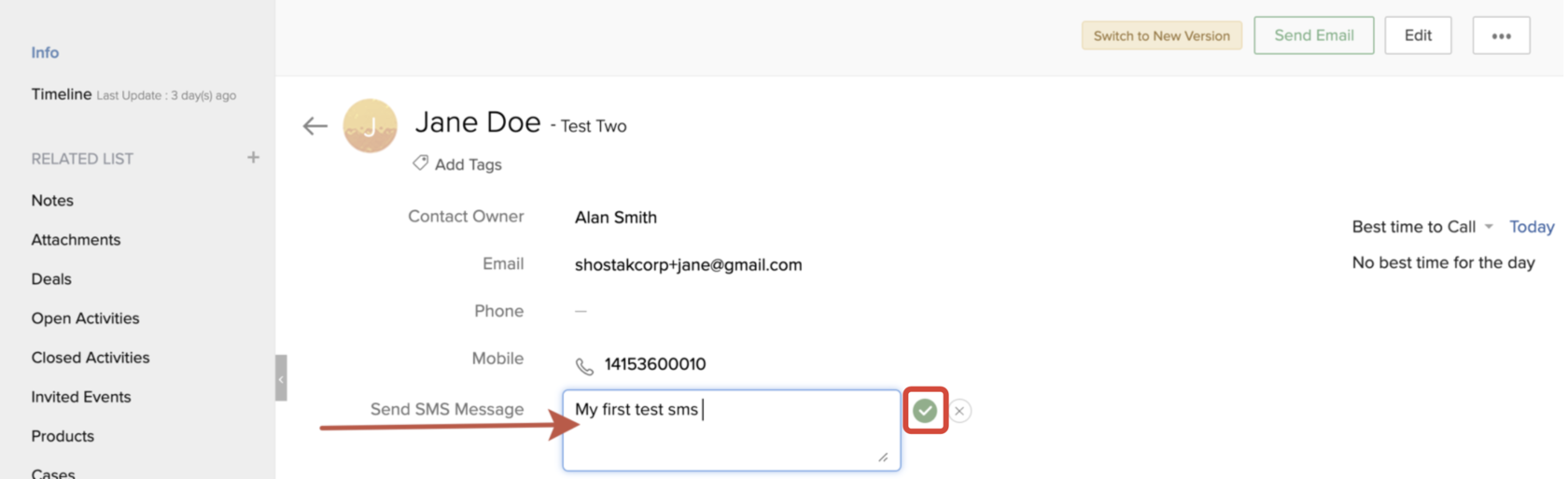
Now open a test contact, enter your own mobile number, type a message and send it.
Using a Twilio trial account?
That works, with one extra step. A trial account can only text numbers on its Verified Caller IDs list, so add the number you're testing with there first. Once you upgrade to a paid Twilio account, you can text any number.
Need a hand?
We're happy to do the setup with you. Get in touch and mention Twilio SMS.