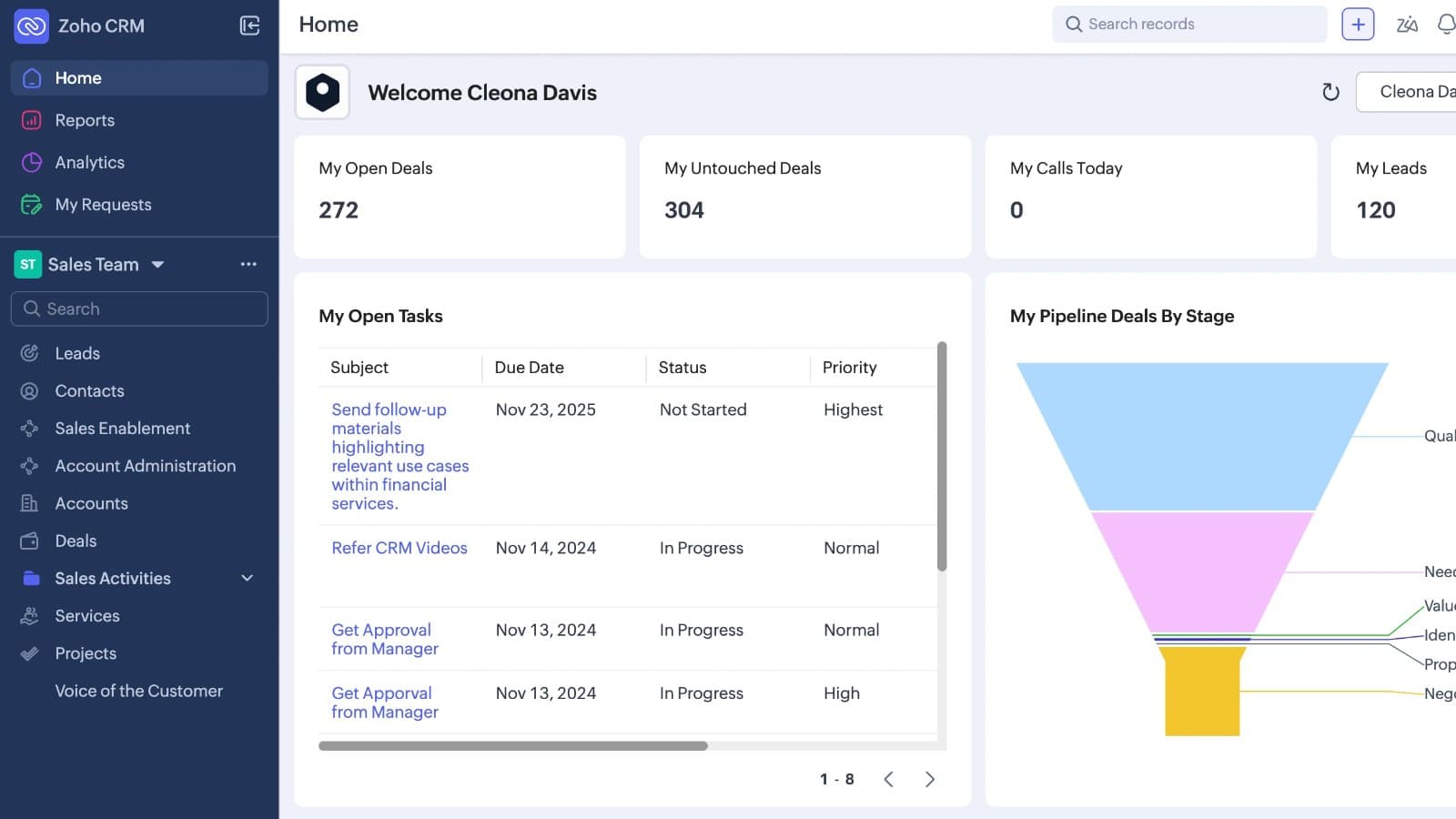
Zoho CRM tasks: create, assign, repeat, and complete
A useful Zoho CRM task tells someone what to do, for which customer, and by when.
A useful Zoho CRM task tells someone what to do, for which customer, and by when. “Follow up” leaves too much to interpret. “Confirm the onboarding contact with the buyer before the handoff” gives the owner a clear next action.
Planning this work for your team? See our Zoho CRM implementation service.
Use one fictional sales follow-up to build your process: a buyer has asked for a revised proposal, and the account owner must confirm the scope before sending it. Create the task, verify its owner and relationship, then close it when the work is actually finished.
Define the follow-up before creating a task
Start with the meeting decision, not the task form. Extract the action, accountable person, deadline, and customer context from your notes. If the notes say “someone should check,” you still need an owner before creating a reliable commitment.
| Task detail | Decision to make |
|---|---|
| Subject | A concrete action with a clear object |
| Owner | The person accountable for completing it |
| Due date | The agreed deadline |
| Related record | The specific customer or sales record |
| Description | Context and evidence needed to act |
| Completion condition | What counts as finished |
Use the deadline the team agreed, rather than making every task due immediately. Distinguish the deadline from a reminder time. A reminder should help the owner prepare for the work; it should not redefine the customer commitment.
For a lead follow-up, check that the task points to the intended person. The leads guide provides the wider record context. For work attached to an opportunity, use your pipeline process to define which decision the task should advance.
Keep separate actions separate when they have different owners or deadlines. Confirming scope and reviewing commercial terms may belong to different people. Combining them in one vague task makes it hard to tell who is waiting for whom.
Create and assign a task
Zoho's task guide documents creating tasks from the Tasks module with Create Task. Tasks have View, Create, Edit, and Delete permissions. Check the access available to the user doing this work.
- Open Tasks and choose Create Task.
- Enter the action as the subject.
- Select the agreed owner and due date using the available controls.
- Select the intended related record.
- Add the context the owner needs, then review and save.
- Open the saved task and compare it with your checklist.
In the fictional proposal example, verify the actual buyer and deal rather than choosing the first matching company name. Include the scope question in the description so the owner does not need to reconstruct the meeting.
Assignment deserves a separate check after saving. Confirm that the task belongs to the intended person and is visible through their permitted working process. The person who enters the notes is not necessarily the person who owes the customer a response.
If a task is attached to the wrong record, inspect its linked person and Related To relationship. Compare the intended CRM record ID before making a correction, and review tasks that lack useful customer context.
Want to change the field order on the New Task screen? Check Zoho's current help docs and the layout controls available in your account. The Tasks module supports custom fields, but that fact does not establish that every creation screen has the same ordering options. Ask your administrator to inspect the exact screen before promising a rearrangement.
Set reminders and recurring work
Task reminders can use email, pop-up, or both. Choose the reminder that fits the owner's work pattern, then inspect the saved settings. Avoid selecting every option just because it is available.
If the reminder pop-up appears at login and you want it disabled, first identify which task reminders are producing it. Review their pop-up choices and check Zoho's current help docs for any broader preference in your account. Do not delete open tasks simply to remove their reminders.
Recurring tasks require a due date. Before configuring recurrence, write down the business schedule and the condition that should end it. A recurring internal review is different from repeatedly chasing a customer who has already declined.
Inspect the recurrence controls in your current task form. Confirm the intended pattern, due date, and any stopping condition the interface provides. Test the behaviour with a controlled example before using it for a live customer sequence.
When future repeats should stop, review the recurrence settings and the scope of the edit or removal action before saving. Check Zoho's current help docs rather than assuming that completing one occurrence cancels future work.
For a script that schedules a reminder from a due date, establish the intended time and time zone first. Then check the current Tasks API or Deluge documentation for the supported reminder structure. Do not infer a reminder payload from a field label or copy an old forum fragment without checking it. A successful task creation response still needs a saved-reminder check.
Create tasks for several records
For several customer follow-ups, prepare a review table before choosing a bulk or import route. Include one row per proposed task, with the owner, due date, relationship, and reason. Check the current account options and documentation for the route you intend to use.
A bulk creation process fits a shared action across a clearly selected group. An import may fit a prepared list with different subjects or deadlines. Neither removes the need to verify the match to each customer record.
Search the existing open work before creating more tasks. Compare action, owner, related record, and due date. Similar subjects alone are not enough to establish a duplicate, but an identical customer commitment deserves review.
For example, if the meeting already produced a scope-confirmation task, a later note saying “awaiting scope” should not automatically create another. Decide whether the note updates the existing commitment or introduces a separate action.
Pilot the chosen route with a small approved set. Inspect every saved task, then reconcile the proposed and created lists. Keep unmatched customer records and missing owners in an exception list rather than assigning them by guesswork.
Review overdue tasks and close completed work
Make the daily review answer two questions: who owns the work, and what is blocking it? Group overdue tasks by owner and inspect the oldest unresolved commitments.
For each task, choose a real disposition: complete it, reschedule it with a reason, reassign it with agreement, or investigate missing context. Moving every due date forward hides the backlog without resolving it.
A task closes when its system Status is set to Completed. A note saying “done” is not a substitute for that status. Confirm the completion condition first, then change the status and verify the saved result.
After a deal decision, review the remaining tasks together. Close completed or obsolete actions only after confirming their status; retain tasks that still matter for delivery, a final response or an agreed future review.
To make open tasks easier to find on an account, first check their record links and status. Then inspect the related-record presentation or task view available in your account. Check Zoho's current help docs before promising that the account screen can always pin open tasks at the top.
For invoice follow-up, verify the underlying customer and payment context before creating more reminders. The native invoice guide explains the CRM record checks that should come first.
Watch it done
See the Assistant review overdue work by owner and link tasks to the right CRM records.
Watch: Review overdue tasks by owner in Zoho CRM | Zoho CRM AI Assistant
Watch: Link open tasks to deals, contacts and accounts in Zoho CRM | Zoho CRM AI Assistant
Get help with this CRM task
For help with owned CRM tasks and follow-up queues, contact zsetup. Include the source event, task owner, due-date rule and reminder/repetition requirements. Share redacted examples rather than live customer details or credentials.
Our Zoho CRM implementation service explains the scope we can discuss and how the work is checked.