Zoho CRM reports: build, validate and share useful answers
Start a Zoho CRM report with a question that has a defined population.
Start a Zoho CRM report with a question that has a defined population. “Which open deals are expected to close this month, by owner?” gives you a clearer build plan than “show sales performance.”
Planning this work for your team? See our Zoho CRM reporting service.
Choose the records, relationships and measures before arranging the output. Then compare the report with recognisable CRM records before sharing it with the team.
Turn a business question into a report definition
Write down what one row should represent. It might be a Deal, a Lead or another primary business record. Define the included population, date field, required columns and measure.
Keep the first report focused. If a question contains several different populations, split it into smaller questions and reconcile them separately. A single complicated output can be harder to explain than the original business problem.
Use a definition sheet:
| Definition | Example decision |
|---|---|
| Primary record | One intended sales opportunity |
| Population | Open opportunities owned by the selected team |
| Date | Expected close date within the agreed window |
| Measure | Record count and agreed amount treatment |
| Exceptions | Missing owners, dates or amounts shown for review |
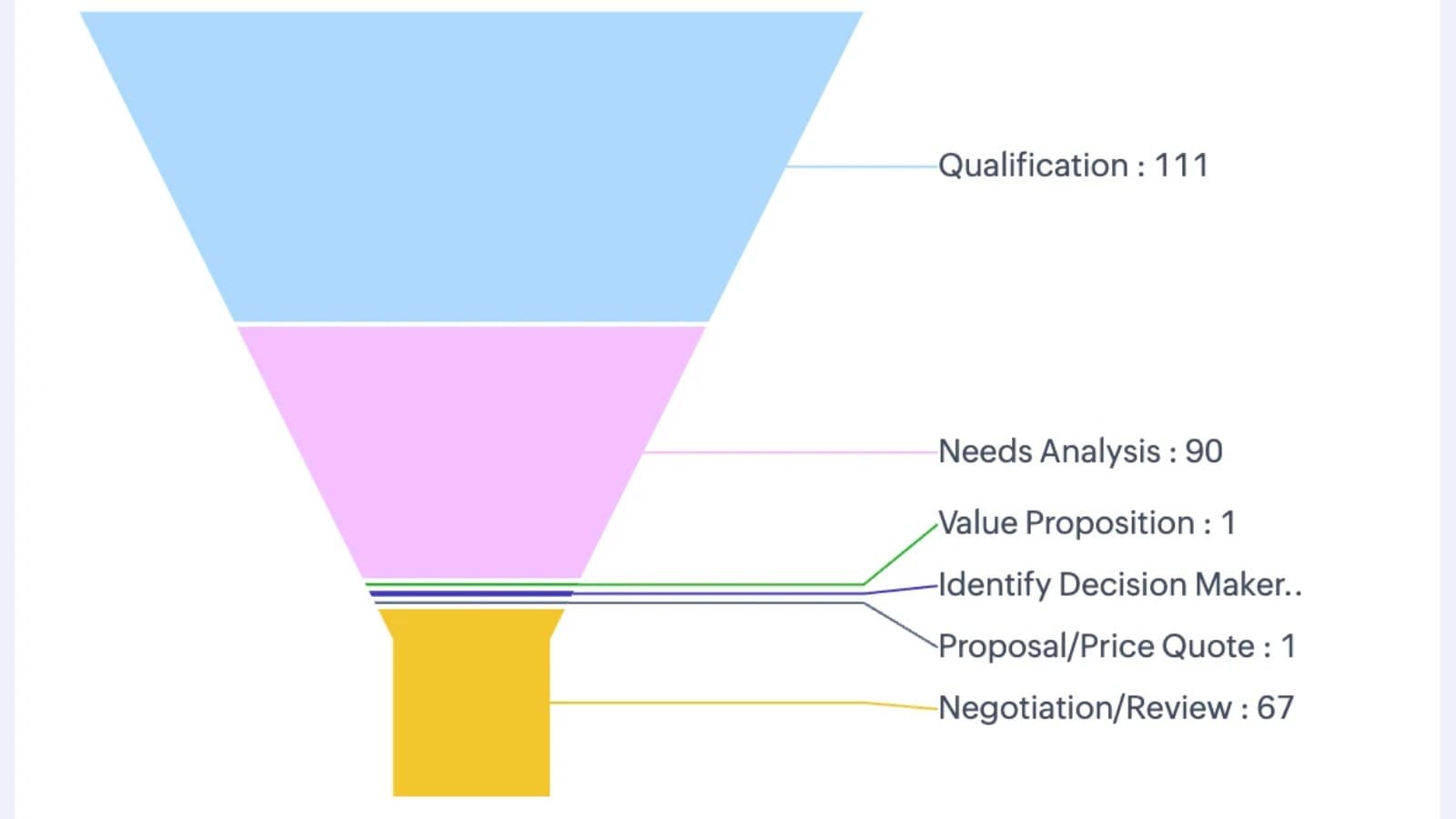
Start with a report of open pipeline grouped by stage and owner. Agree what “open” means before configuring it.
Choose primary and related modules
Zoho's report-building guide says a report starts with a primary module. Related modules are optional, so add them only when they answer part of your question.
The guide describes parent modules connected through lookup fields and child modules drawn from related lists. Child relationships can be inclusive or exclusive. Review what the chosen relationship does to your population before adding more columns.
Test a primary record with no related child and one with several children. Decide which should appear and whether the business measure belongs to the parent or child. That decision matters when you total values.
Do not add a related module merely because its name looks useful. State which field or relationship you need from it. Keep the first working version simple enough that you can explain why every record is present.
Select columns, grouping and criteria
Follow the current web reporting interface to select the primary module, add only the needed relationships, choose columns, configure criteria and save the report. Check Zoho's help docs when the interface differs from an older walkthrough.
Place identifying columns early. Reviewers need to locate the underlying record when something looks wrong. Add owner, date and status values that explain the grouping or population.
Use explicit date fields and stage criteria. “Created this month” answers a different question from “expected to close this month.” Give the report a name that reveals the distinction.
Add grouping only when it helps a decision. A manager may need totals by owner, while the salesperson needs the actual records behind those totals. Keep both views understandable.
For a closed-loss analysis, define the lost-deal population separately. Do not reuse an open-pipeline filter and assume a different title changes its meaning.
Validate missing records and repeated totals
Choose sample records before inspecting the result. Include an ordinary record, a boundary-date case, a record without a child relationship and one with several related records.
If a record is missing, inspect criteria and relationship inclusion first. Then review the selected date, stage and owner population. Do not assume the data disappeared merely because it is absent from one report.
If a total is repeated or unexpectedly high, inspect the relationship structure. Establish whether your analysis repeats a parent amount for several child rows. Compare the result with the primary records instead of accepting a plausible-looking sum.
Check missing values and currency treatment. A blank amount should have an agreed meaning; silently treating it as a verified zero can distort the conclusion.
For a weighted forecast, validate the weighting assumptions separately from the unweighted pipeline. Record the definition and sample checks so another reviewer can reproduce them.
Share, export or schedule the report
Choose the report’s intended audience and test access as a representative recipient. Sharing a report and sending a static copy are different decisions: check the visible data before distributing either.
For a download, Zoho’s report-building guide documents Reports → more → Export, or the export option beside Edit in an open report. Choose formatted or detailed output and an offered format such as Excel, CSV or PDF. Include primary record IDs when you need traceable reconciliation, and inspect dates, identifiers and totals in the exported file. Check the limits for the selected export method rather than assuming it includes every row.
For a one-off delivery, the report’s Send Email option supports sending immediately or scheduling that email for later. For a recurring delivery, use the separate report scheduler. With Schedule report permission, open Reports → Scheduled Reports → New Report Scheduler, select the report, start time, repeat/end settings and recipients, then review the delivery route. Zoho documents email, Cliq and Cisco Webex options with route-specific access requirements.
Keep a named owner for a recurring report. Verify the first delivered result and its audience, and review the schedule when permissions, staff or report definitions change.
If even a super admin sees “permission denied,” record the exact report, account context and error. Check current profile access and Zoho's troubleshooting documentation. Do not infer a universal cause or broaden everyone's access based on one message.
Use reports on mobile
Zoho's Android report guide documents report viewing in the Android app and web-only report creation. Build and validate the definition on the web, then test the view on the device your team uses.
Check whether identifiers, group labels and important values remain understandable on a smaller screen. A report that technically opens can still be difficult to use during a customer conversation.
For mobile export, verify the current app's supported options and format rather than assuming it matches the web interface. Confirm the resulting file with a sample before making it part of a field-sales process.
Use the dashboard guide if the team needs a summarised review view alongside the report. Reuse the same population and measure definitions.
Get help with this CRM task
For help with a CRM report whose totals reconcile, contact zsetup. Include the business question, record population, relationships and date/amount definitions. Share redacted examples rather than live customer details or credentials.
Our Zoho CRM reporting service explains the scope we can discuss and how the work is checked.